Skip to content
- Open Mofufuku
From the menu, select Window > Someka > Mofufuku to open the editor.
- Display the Avatar
Add the target avatar to the hierarchy.
Dress the avatar, apply the fur material, and adjust blend shapes as needed.
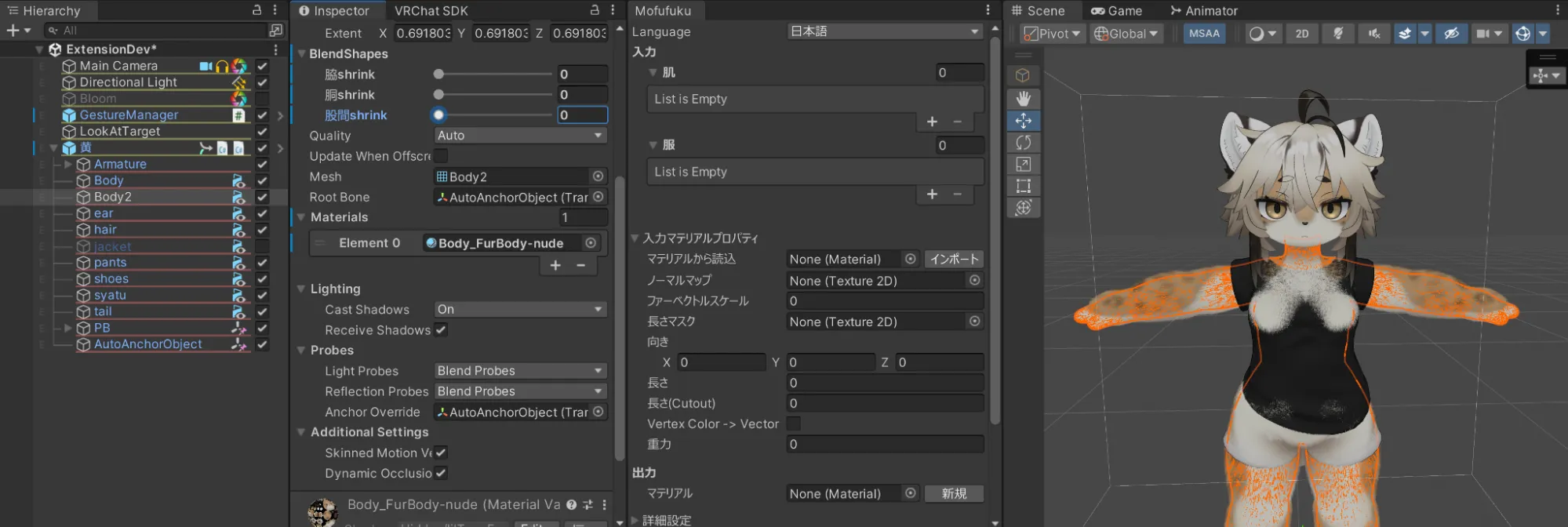
- Specify Meshes
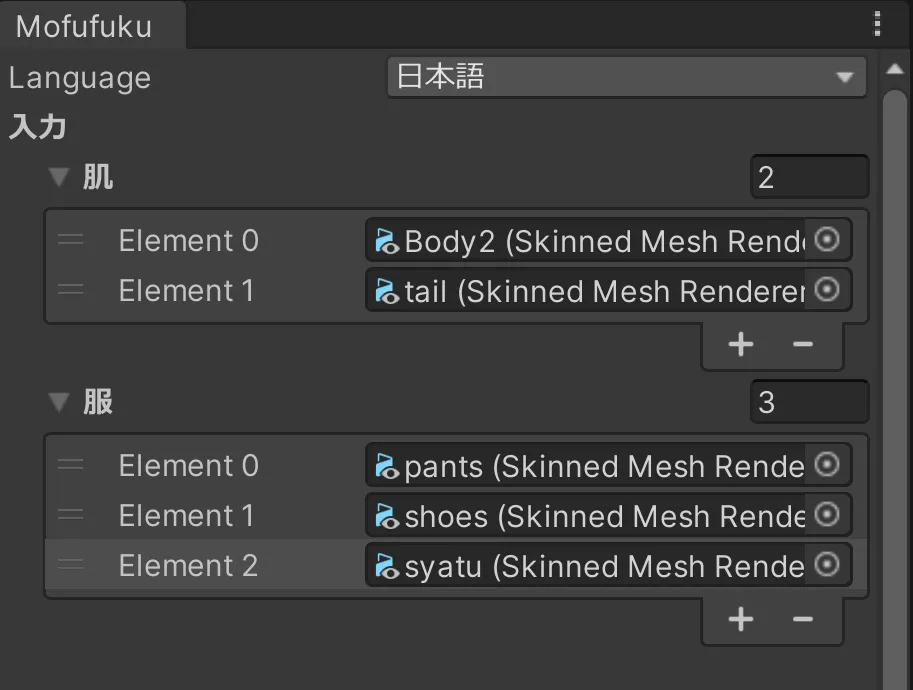
Specify the skin mesh and clothing meshes respectively.
[!] The skin mesh must use the same material for all parts/submeshes. If different materials are used, it may not work properly.
- Specify Material
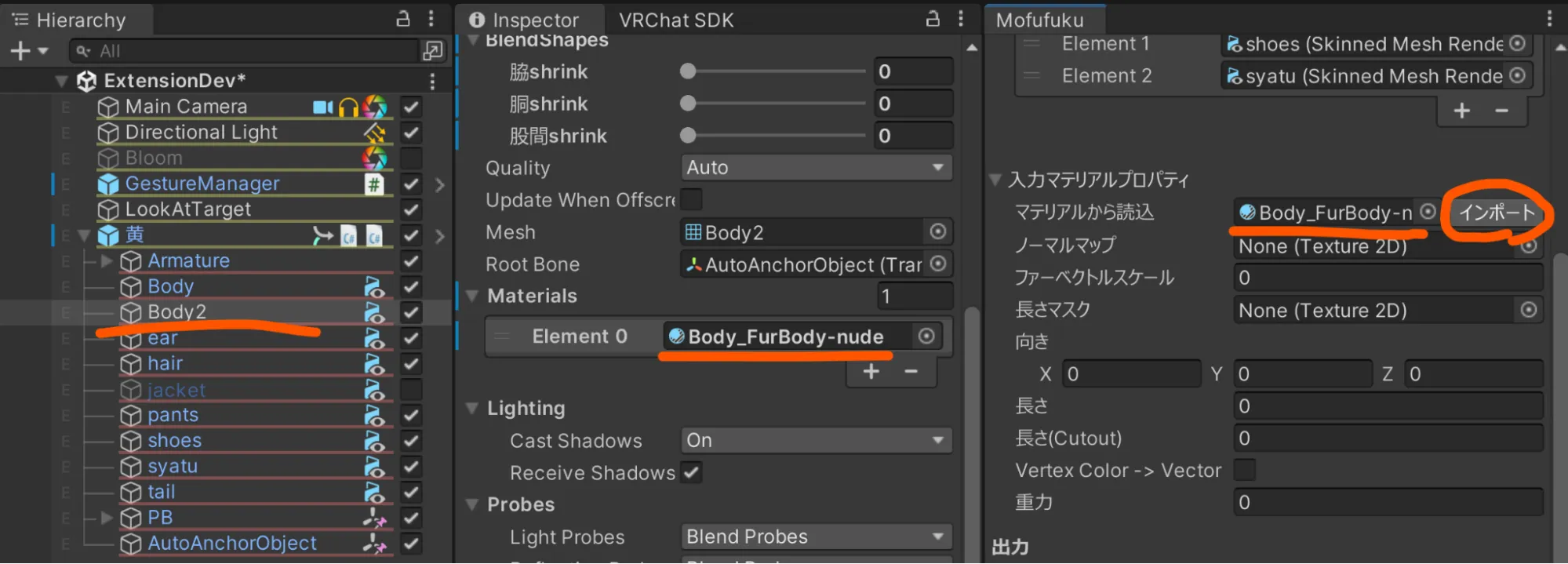
Specify the skin material in Mofufuku’s “Input Material Properties” > “Load from Material” and click the “Import” button.
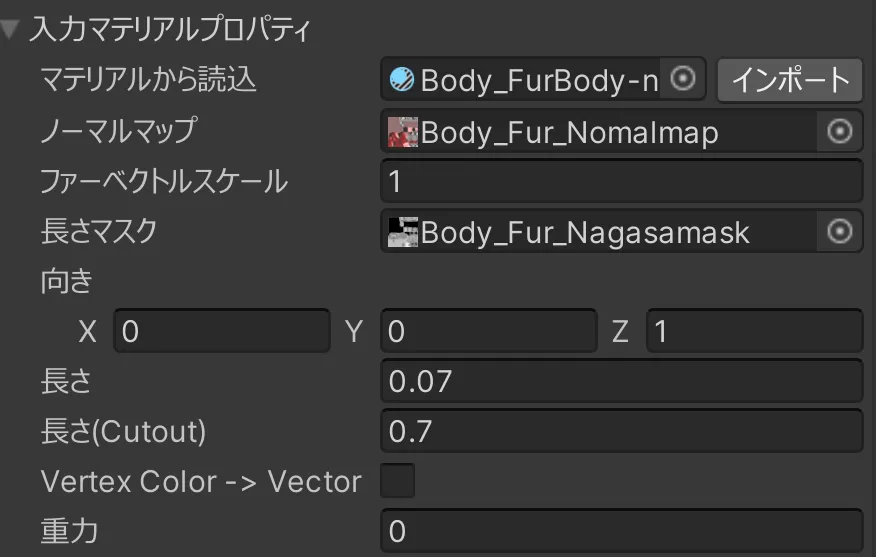
If the properties appear as shown below, the import succeeded.
- Generate or Specify Output Material
If running for the first time, click Mofufuku’s “Output” > “New”.
If there is a previously generated material, specify it.

- Generated materials are saved to “Assets/ZZZ_Mofufuku_Generated/”. You can move them elsewhere.
- The normal map and length mask output by Mofufuku are set to this material.
- Apply Material to Avatar
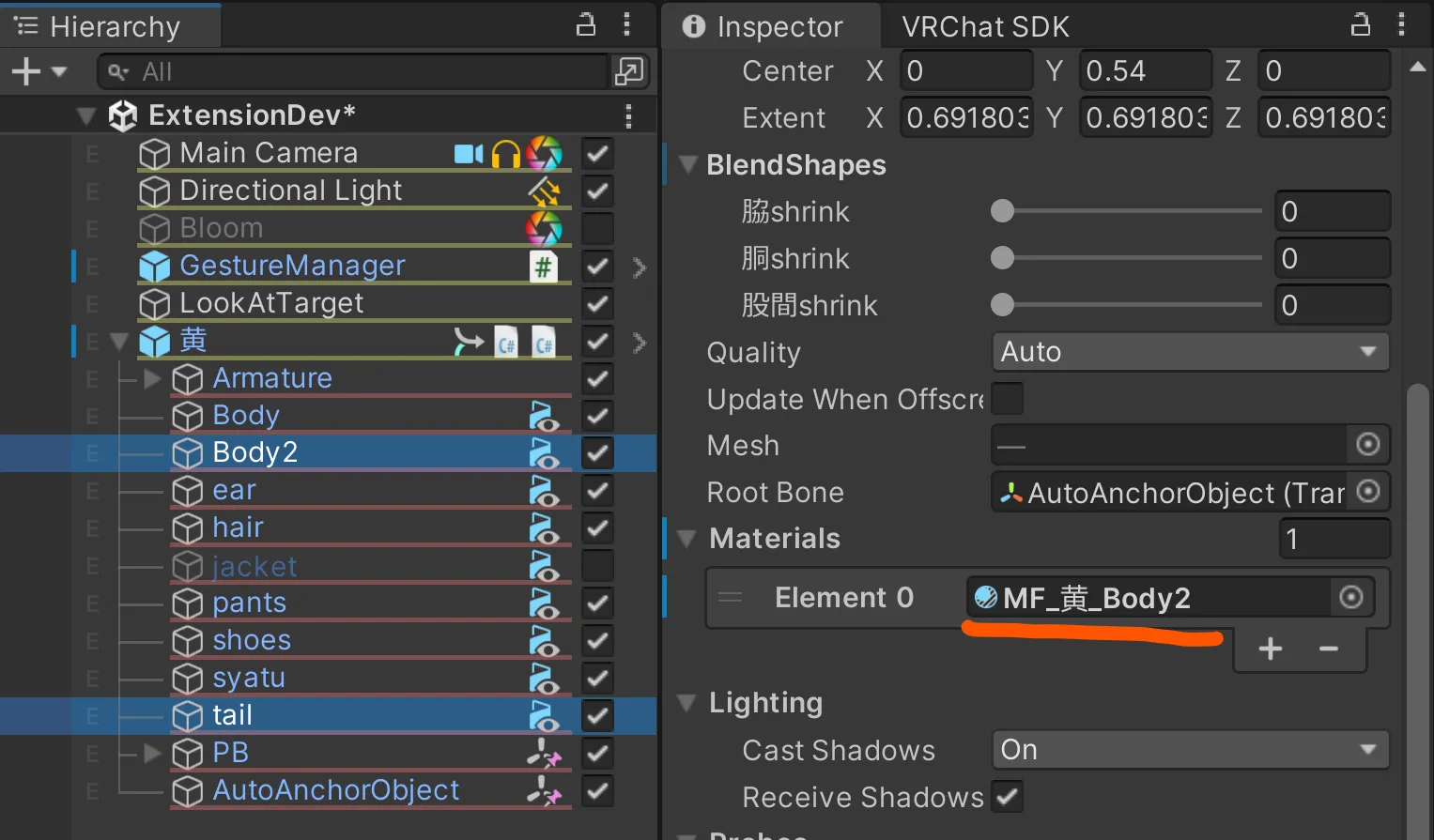
Setting the generated material to the skin mesh allows you to immediately check the Mofufuku execution results.
- Execute
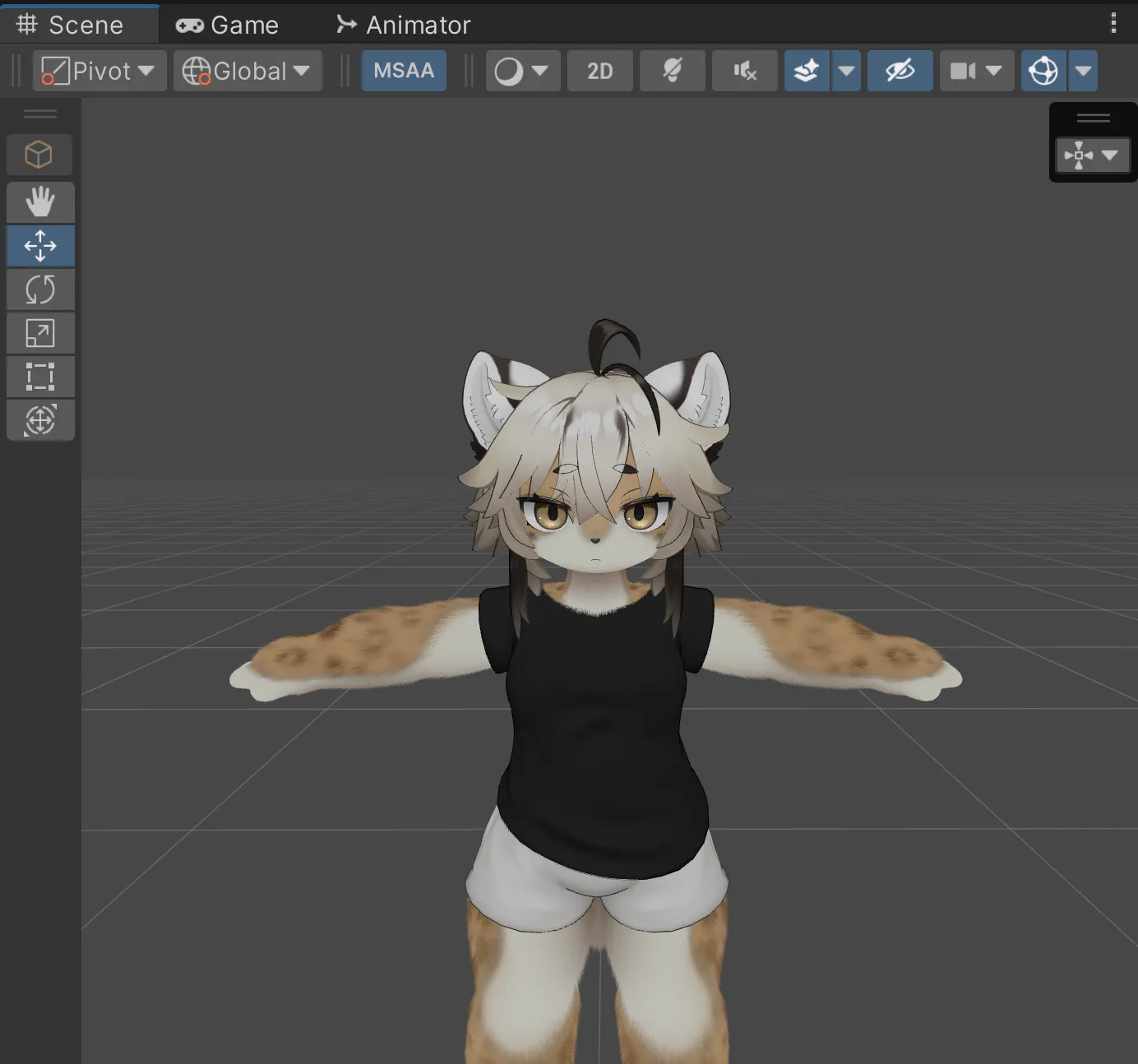
Click the “Execute” button. Hair collision should be resolved.
- Fine-tune
Mofufuku has several parameters to control hair collision detection and movement.
If Mofufuku can’t fully fix the hair, adjust textures (e.g., length masks) manually using an image editor.